Document your DataCamp XP.
Enter your details once. Record each activity. Keep a copy of your work.
Open XP Summary
Go to www.reyparcon.com/xp-summary. Select from the course, activity, and chapter options set by your instructor.
Prepare your evidence
Have your student information and screenshots of chapter XP ready. Enter only the XP you actually earned.
Keep your own copies
The app does not save student records online. Export all records to resume editing and download PDF for submission.
Enter your details.
Start in the “Create record” tab.
Complete the required fields
Enter your last name, first name, student ID, section, and report date.
Add academic information
Select Section, Program, School year, and Semester from your instructor’s dropdowns. Enter your email as needed. Contact your instructor if an option is missing.
Select your course
Choose the correct course code and title. If your course or activities are missing, contact your instructor.
Record chapter XP.
Use the configured dropdowns to label your evidence.
Add an activity
Choose one DataCamp activity from the dropdown, such as Understanding Excel if it is listed. Each record holds one activity.
Add each chapter
Click “+ Add chapter”, choose the chapter, and attach its screenshots. The reader lists content titles and earned XP for green-checked rows only. It can fill a blank XP field; you can edit that value. Repeat for each required chapter.
Attach screenshots
Attach clear screenshots showing chapter XP. Review the detected values; for overlapping images, count each row once and click “Use selected total”. Up to 3 images per chapter; PNG, JPEG, WebP under 10 MB.
Check. Download. Submit.
Review every chapter before preparing your submission.
Review the summary
Open “2. Review summary”. Check your name, student ID, course, chapter labels, screenshots, and total XP.
Export both file types
Click “Export current JSON” for the open record or “Export all records” for the full list. Click “Download PDF” for the open activity’s summary.
Submit the PDF
Upload the PDF to the assignment or submission channel specified by your instructor. Downloading it does not submit your work.
Start another record.
Keep your name and details. Create a separate record for each activity.
Save the current record first
Download its PDF and export JSON before clearing or starting again. Earlier records stay in “My activity records” while this tab remains open.
Use “+ New activity record”
The app keeps the previous record and opens a new draft with your student details. Choose the next activity from the dropdown.
Use “Clear current activity” to reset one record
This clears only the open record’s activity, XP, and screenshots after confirmation. Your student details and other records stay. Choose an activity to use the cleared draft.
Keep your work ready.
Use JSON to continue a record later.
Restore an exported record
Click “Import JSON” and choose a file previously exported by XP Summary. Import adds records to your list. Older files containing several activities are split into separate records.
Resolve missing options
An older JSON may not import if your instructor removed its course, activity, or chapter. Ask your instructor about the current settings.
Check before closing
Confirm that your downloaded files open, screenshots are readable, totals match, and the PDF is uploaded to the correct assignment.
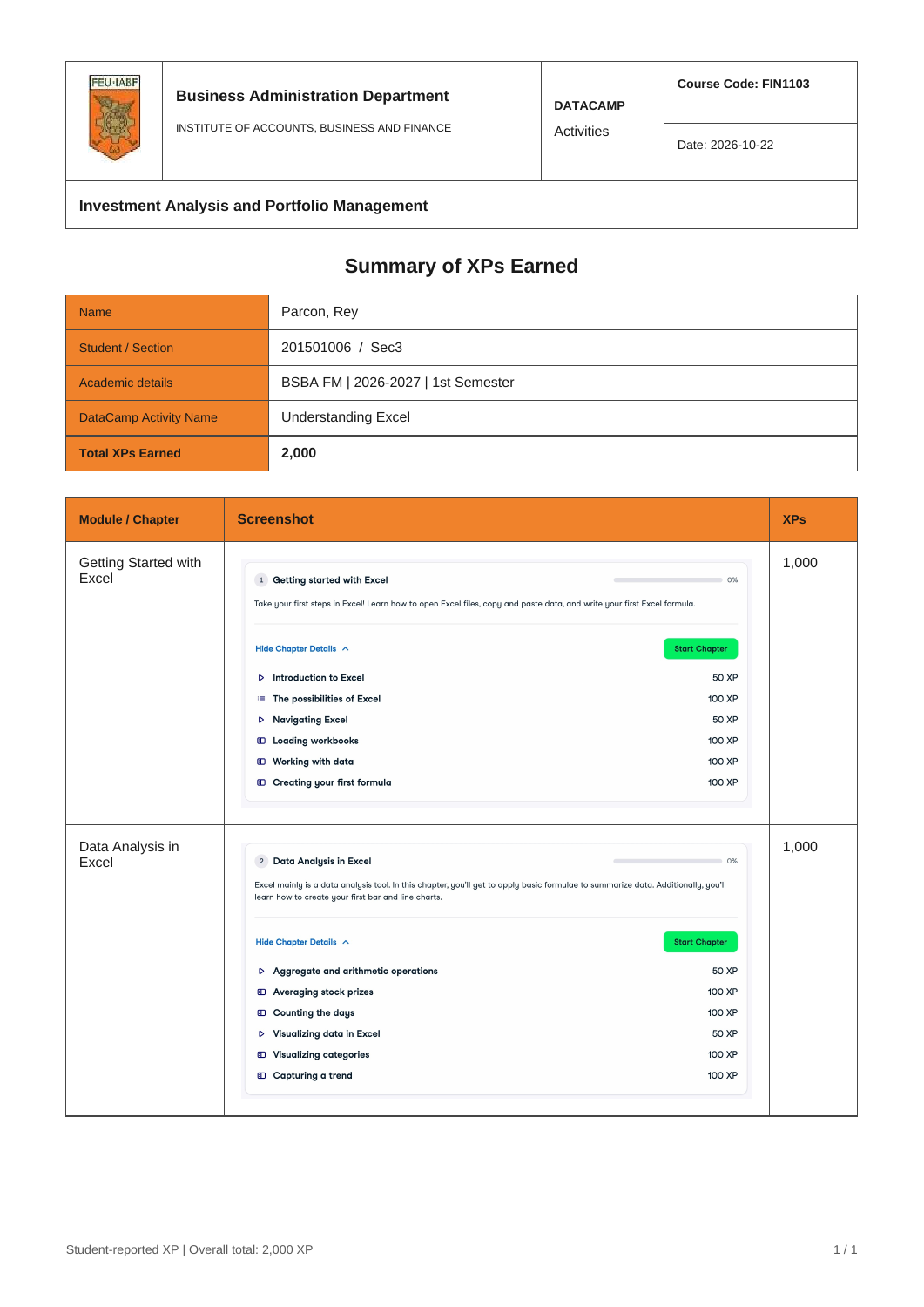
Your submission at a glance.
Check your student details, course, activity name, chapter screenshots, and XP totals. Click the example to view it at full size.